



Sensitivity Converter
California City, California
Sensitivity Converter
7 months ago
How to Use a Mouse Sensitivity Converter - Easy Steps
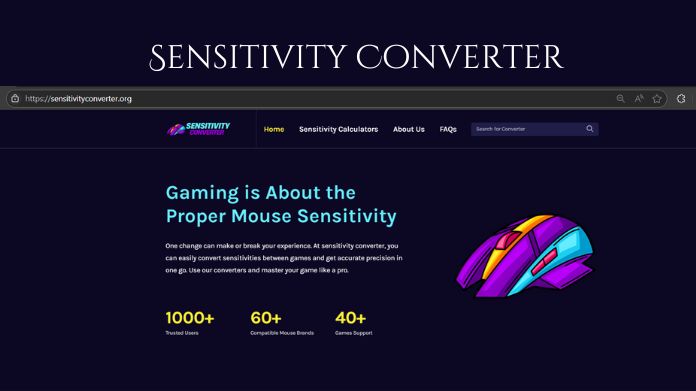
Ever jumped from one game to another and suddenly felt like your aim was completely off? You’re not alone. It’s one of the most common frustrations for gamers; what feels perfect in one game can feel totally wrong in the next.
That’s where the sensitivity converter tool comes in. This little tool might not seem like much at first glance, but it can make a huge difference in how you experience games.
What Is a Sensitivity Converter?
A sensitivity converter is a useful tool that helps gamers keep their mouse sensitivity consistent across different games.
A sensitivity converter converts your current settings into the right values for another game, so your aim and movement feel the same no matter what you play.
How to Use Sensitivity Converter Tool?
Let's walk through how to actually use a converter to your advantage. You don't need to be tech-savvy to do this. It's simple, fast, and the results speak for themselves.
1. Pick the Right Converter Tool
First, select a trusted online Sensitivity converter. There are several online calculators accessible. Select one that supports the games you are interested in. A sensitivity calculator is a reliable source.
2. Know Your Current Settings
Before you can convert anything, you need your current game's sensitivity and your DPI setting. DPI stands for Dots Per Inch and is set through your mouse's software or directly on the mouse itself.
3. Input Source Game and Settings
Now go to the converter and choose the game you're coming from. That's your "source" game. Enter your DPI and sensitivity values.
Many tools even let you choose whether you're using hip-fire, aim-down-sights, or scoped settings.
4. Select the Destination Game
Next, choose the game you're switching to. That's the "target" or "destination" game. Again, you might be going from Overwatch to CS:GO or from Valorant to Rainbow Six Siege.
The converter will ask if you want to match view speed, 360 distance, or monitor distance. If you're unsure, start with 360 distance; it's the most common and gives you a familiar turning radius.
5. Check Your New Sensitivity
Once you hit convert, the tool will give you a new sensitivity value. That's the number you should input into the new game's settings. Copy it exactly down to the decimals if needed.
Some converters also show you the difference in turn distance or crosshair movement, so you can fine-tune it if it feels slightly off.
6. Test and Adjust
Now, hop into a training map or practice range in your new game. Move around. Aim. Flick. Does it feel natural? Close your eyes, do a full 360 turn, and see if you stop exactly where you started.
If something feels weird, it's okay to tweak it. Even with the most accurate conversion, personal preference matters. You might need to change your FOV slightly or test in real-game scenarios.
Final Words
So, Using a mouse sensitivity converter is the easiest way to keep your aim consistent across different games. By following a few simple steps, you can save time, avoid guesswork, and maintain your precision no matter where you play.
0 likes · 0 comments
Education Facebook
  X
X  Linkedin
  Whatsapp
 Do you want to manage your own group?
